mirror of
https://github.com/audacity/audacity-support.git
synced 2025-12-14 04:21:08 -06:00

111 lines
6.6 KiB
Markdown
111 lines
6.6 KiB
Markdown
---
|
|
description: >-
|
|
A Macro is a sequence of pre-configured commands (mainly effects) in a set
|
|
order that can be applied automatically to projects or audio files.
|
|
---
|
|
|
|
# Using Macros to Automate Frequent Tasks
|
|
|
|
### What are the main uses for Macros?
|
|
|
|
 Macros in Audacity can be used for:
|
|
|
|
* **Batch processing**: Apply one or more effects to multiple audio files and export the processed audio into a new file.
|
|
|
|
To use this select the **Apply Macro to:** Files... button in the [Macros Palette](../../../../audio-editing/macros/macros-palette.md) or the [Manage Macros](../../../../audio-editing/macros/manage-macros.md) dialog.
|
|
|
|
For more detail on batch processing please see [**this page**](../../../../audio-editing/macros/macros-palette.md#files...).
|
|
* **Effects automation**: where the [selected audio](https://manual.audacityteam.org/man/audacity\_selection.html) in the [track](https://manual.audacityteam.org/man/audio\_tracks.html) or tracks in the current project is subjected to the same prescribed sequence of effects, and optionally, a file exported from the entire audio.
|
|
|
|
{% hint style="info" %}
|
|
Macros can contain Select commands to make their own selections as the Macro runs
|
|
{% endhint %}
|
|
|
|
* **Effect presets**: where selected, commonly used, effects are stored with your preferred settings for quick re-use.
|
|
|
|
### How to access Macros
|
|
|
|
You can manage and apply Macros using the [Tools Menu](https://manual.audacityteam.org/man/tools\_menu.html):
|
|
|
|
* **Tools > Macros...** to manage Macros: [to create, edit and test](../../../../audio-editing/macros/manage-macros.md) them
|
|
* **Tools > Apply Macro > Palette...** for a [toolbox of Macros](../../../../audio-editing/macros/macros-palette.md)
|
|
* **Tools > Apply Macro >** _named Macro_ to [apply one named Macro](https://manual.audacityteam.org/man/tools\_menu\_apply\_macro.html)
|
|
|
|
There are some [**examples of Macros**](../../../../audio-editing/macros/macros-examples.md) and tips on using them.
|
|
|
|
### [Manage Macros](../../../../audio-editing/macros/manage-macros.md)
|
|
|
|
Use **Tools > Macros...** if you need to create a new Macro or to edit an existing Macro.
|
|
|
|

|
|
|
|
### [Macros Palette](../../../../audio-editing/macros/macros-palette.md) dialog
|
|
|
|
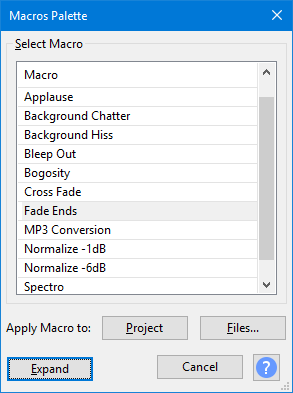
Use the **Shrink** button to show a reduced [Macros Palette](../../../../audio-editing/macros/macros-palette.md) dialog which lists the existing Macros.
|
|
|
|
This dialog is also available directly via **Tools > Apply Macro > Palette...**
|
|
|
|
|
|
|
|
{% hint style="info" %}
|
|
Click **Expand** on the [Macros Palette](../../../../audio-editing/macros/macros-palette.md) to return to the full [Manage Macros](../../../../audio-editing/macros/manage-macros.md) dialog.
|
|
{% endhint %}
|
|
|
|
#### Apply Macro to
|
|
|
|
Both the [Manage Macros](../../../../audio-editing/macros/manage-macros.md) dialog and the [Macro Palette](../../../../audio-editing/macros/macros-palette.md) dialog have **Apply Macro to** buttons:
|
|
|
|
* **Project** applies the selected Macro to the current project.
|
|
* **Files...** applies the selected Macro to selected external audio files that are in a single directory.
|
|
|
|
{% hint style="info" %}
|
|
It is recommended not to process more than **500** files at a time.
|
|
{% endhint %}
|
|
|
|
For more details see the [Macros Palette](../../../../audio-editing/macros/macros-palette.md) page.
|
|
|
|
### Macro Command Parameters
|
|
|
|
Commands that call Effects, Generators, Analyzers or Tools, use the same familiar graphical interface (GUI) as appears when they are used from the normal top level menus.
|
|
|
|
Many of the other commands provide a simple GUI comprised of checkboxes and text entry boxes. Typical examples can be seen in the [Scriptables I](https://manual.audacityteam.org/man/extra\_menu\_scriptables\_i.html) and [Scriptables II](https://manual.audacityteam.org/man/extra\_menu\_scriptables\_ii.html) menus.
|
|
|
|
{% hint style="info" %}
|
|
It is _**strongly**_ recommended that you set parameters for the commands that you use in a Macro. Otherwise Audacity will use the last-used parameter setting(s) when you ran the effect(s) manually.
|
|
|
|
Also note carefully that settings used in Macros will not affect or change the last-used parameter settings for any effect when next run manually.
|
|
|
|
Basically to paraphrase: _"What happens in Macros stays in Macros"_.
|
|
{% endhint %}
|
|
|
|
Please see [Manage Macros](../../../../audio-editing/macros/manage-macros.md) for more details.
|
|
|
|
### Sharing a Macro
|
|
|
|
You can export a Macro as a TXT file using the Export button in [Manage Macros](../../../../audio-editing/macros/manage-macros.md) and send it to another user, or copy it to another computer for use there
|
|
|
|
You can import another user's Macro, or a copied macro of your own, into your Macros folder by using the Import button in [Manage Macros](../../../../audio-editing/macros/manage-macros.md).
|
|
|
|
{% hint style="info" %}
|
|
You can also edit Exported Macros with a text editor and Import them back in if required.
|
|
{% endhint %}
|
|
|
|
### Where Macros are stored
|
|
|
|
Each Macro is automatically saved as a separate text file with TXT [_**extension**_](https://manual.audacityteam.org/man/glossary.html#extension) in the **Macros** folder in Audacity's folder for application data:
|
|
|
|
* **Windows:** Users\\\<username>\AppData\Roaming\audacity\Macros
|
|
* **Mac:** \~/Library/Application Support/audacity/Macros
|
|
* **Linux:** \~/.audacity-data/Macros
|
|
|
|
{% hint style="info" %}
|
|
In order to see the **Macros** folder on Windows, macOS or GNU/Linux, you must show hidden files and folders or type the folder location into your file manager's address bar.
|
|
|
|
* **Windows:** In the tree on the left of Explorer, double-click "Users" then double-click your username, then on the right, double-click the AppData or Application Data folder and navigate through that. If necessary, show hidden files and folders on [Windows](http://www.howtogeek.com/howto/windows-vista/show-hidden-files-and-folders-in-windows-vista/) or type **%appdata%\audacity\Macros** or **shell:appdata\audacity\Macros** into the Explorer address bar then press Enter on your keyboard.
|
|
* **macOS:** Open Finder, use the Go menu, choose Go to Folder and type **\~/Library/Application Support/audacity/Macros**, or set Finder to [show your User Library folder](http://osxdaily.com/2011/07/22/access-user-library-folder-in-os-x-lion/).
|
|
{% endhint %}
|
|
|
|
### Macros Examples
|
|
|
|
See the [Macros Examples](../../../../audio-editing/macros/macros-examples.md) page for examples of using Macros
|